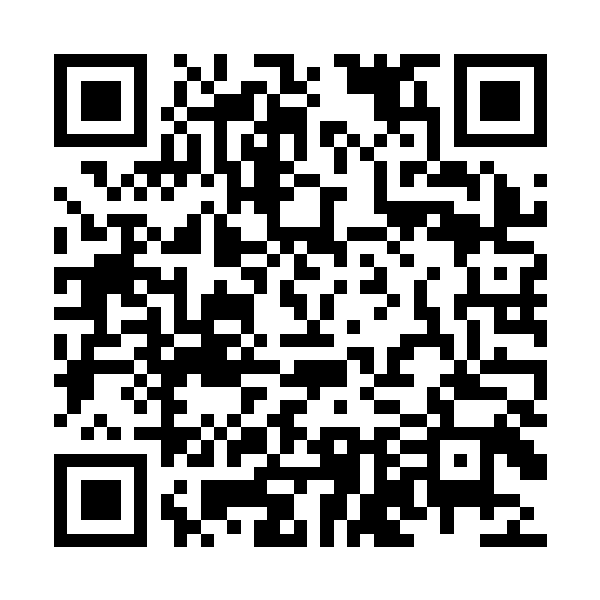
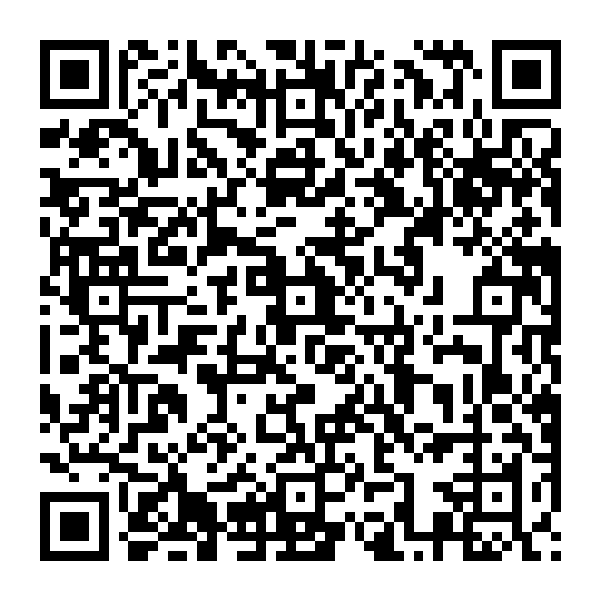
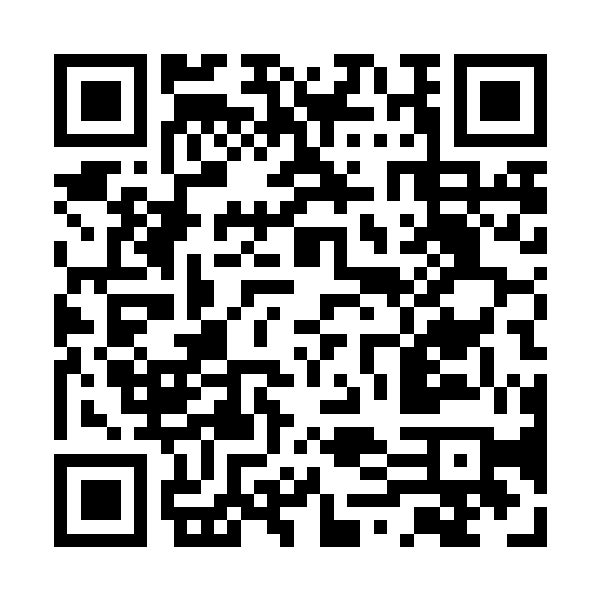
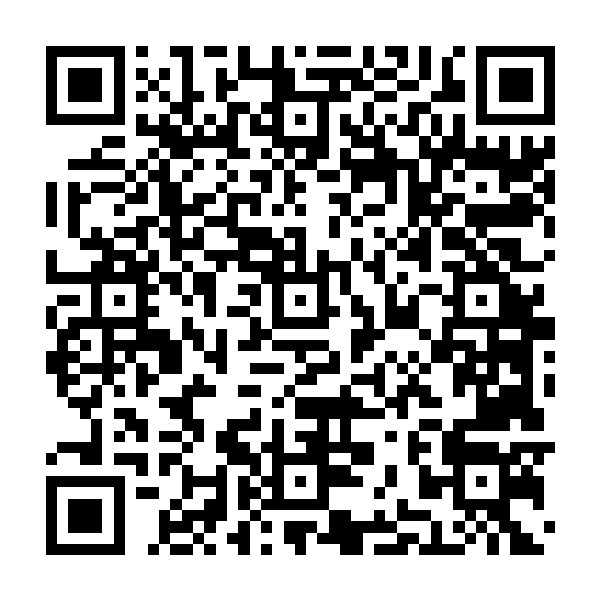
Standing in a long queue at the Morinda (MRND) booking counter just to get an unreserved ticket? You don't have to anymore. This page hosts a ready-to-scan UTS (Unreserved Ticketing System) QR code for Morinda station in Punjab, so you can book your ticket straight from your phone without any queues, paper, or hassle.
What Is This Morinda UTS QR Code?
The Indian Railways UTS mobile app lets passengers buy unreserved tickets digitally, but it usually asks you to select your boarding station manually from a list, which can be slow if the station name is long or if there are similarly named stations nearby. This QR code simply encodes the station code MRND for Morinda, so when you scan it inside the UTS app, your boarding station gets filled in automatically. It saves you a few taps and reduces the chance of picking the wrong station by mistake.
This is not an official Indian Railways product, rather it's a convenience tool we've built to make the existing UTS app easier to use at this specific station. All actual booking, payment, and ticket validation still happens inside the official UTS/RailOne app.
How to Book a Ticket Using the Morinda QR Code
- Install the official UTS/RailOne app, available on the Google Play Store and Apple App Store. Skip this step if you already have it.
- Log in with your registered mobile number, or create a new account if it's your first time.
- Open the app and choose the "Book Ticket via QR" or QR scan option on the home screen (naming may vary slightly by app version).
- Scan the Morinda QR code shown on this page using your phone's camera.
- Once Morinda is auto-filled as your boarding point, enter your destination station and select your train/coach category (General, MST, Platform ticket, etc.).
- Complete the payment via UPI, wallet, or your R-Wallet balance inside the app. Your ticket will be generated instantly and stored in the app.
Tips for a Smooth Scan
- Keep your phone's brightness up and avoid glare on the screen while scanning.
- Make sure your camera lens is clean — a smudged lens is one of the most common reasons a scan fails.
- The UTS app typically requires location access to confirm you're within the eligible radius of the station, so keep GPS turned on before you start.
- If the app hangs or shows a timeout, a quick restart of the app usually resolves it faster than waiting.
- Booking is generally allowed a short window before departure, so try to scan and book a few minutes before you plan to board, not at the last second.
Frequently Asked Questions
Can I use this QR code for reserved or AC-class travel?
No. This code is meant only for unreserved/general ticket bookings through the UTS system. For reserved classes (Sleeper, AC, etc.), you'll need to book through the regular IRCTC reservation process.
Do I need to be physically at Morinda to use this?
Yes, in most cases. The UTS app checks your location to make sure ticket bookings originate from near the actual station, so this works best once you're at or approaching Morinda.
Do I need to print anything after booking?
No. Your digital ticket is stored in the app and can be shown on your phone screen to the Ticket Examiner (TTE) when asked.
Is this the same as the QR code displayed at the station?
It represents the same station code (MRND) used by Indian Railways for Morinda. We provide it here as a convenient, always-accessible backup in case the physical display board is missing, damaged, or hard to reach due to crowding.
What if the app doesn't recognize the scan?
Double-check your internet connection and try scanning again in better lighting. If the issue persists, you can always select Morinda manually from the station list inside the app.
This page is an independent resource and is not affiliated with, endorsed by, or operated by Indian Railways, IRCTC, or CRIS. All actual ticket issuance, payment, and validity are governed by the official UTS/RailOne application and Indian Railways rules.